
 Last updated: October 29, 2026
You run Delta Executor to access Roblox, but rather than it working properly, you receive a message indicating that your Roblox is outdated. You open the Google Play Store, only to discover that no new version is available. The same error appears again when you open Delta, leaving you uncertain whether Roblox or the executor is creating the issue.
If the installed app is incompatible with the version of the Roblox client in your device, you might experience the Delta Executor Roblox upgrade error. Roblox updates can change compatibility requirements and external tools may need a newer version before they work correctly with the latest release. So it makes sense to check the installed Delta build, which may appear as Roblox in Android settings. The message does not necessarily indicate you overlooked a Roblox update.
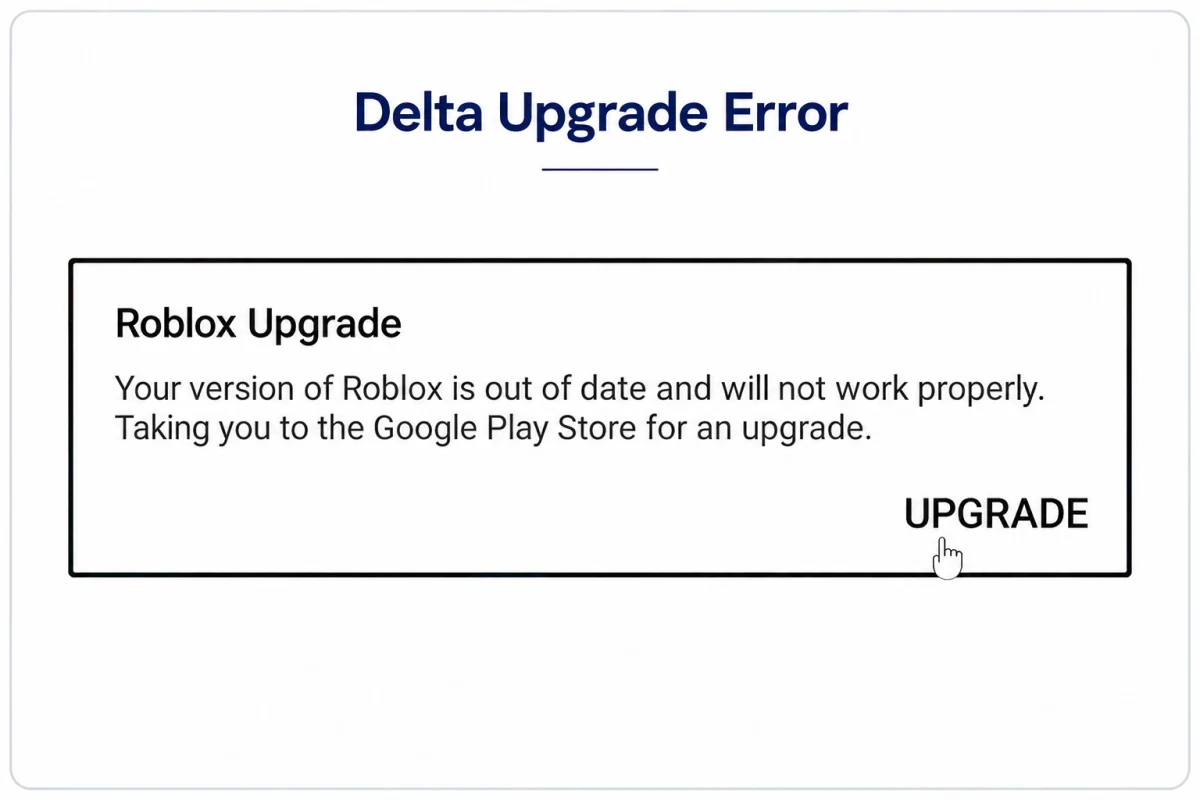
What is the Delta Executor Roblox Upgrade Error?
Roblox upgrade error is an alert that may appear when you start Delta Executor on your smartphone. The alert can mean the Roblox client bundled with your Delta installation is outdated or incompatible. After the notification shows up, you may be redirected to the Google Play Store. Updating Roblox there does not update Delta Executor.
What causes the Roblox Upgrade Error in Delta Executor?
The Roblox upgrade error in Delta Executor may happen due to outdated app builds, Roblox version updates, compatibility issues or temporary app glitches impacting your mobile device.
New version released by Roblox
When Roblox introduces a new version, Delta Executor might stop working correctly until such times a supported version becomes available. As a result, you may encounter an upgrade alert even when Roblox is already up to date on your phone.
Outdated Delta Executor
Your mobile device may have an outdated Delta Executor build that does not support the current Roblox version. Make sure to check if a newer release exists that is compatible. Installing the same outdated APK once more is not likely to fix the issue.
Roblox Error Code 280 Appears
Roblox error code 280 can suggest a version-related issue. If the error appears, look at the complete error notification and check the version of your Delta installation.
Cached Files or App Temporary Issues
Occasionally an app does not open as expected owing to transient errors or cached data. Restarting your phone or clearing the Delta Executor cache may help but these steps will not fix an underlying version compatibility issue.
How to Fix Delta Executor Roblox Upgrade Error on Android
To resolve the Delta Executor Roblox Upgrade Error, you can check for a Delta Executor update on our website, reboot your Android device and clear the app cache.
Check for the not now option
If the upgrade prompt contains a not now option, select it and see whether delta starts. Skipping the alert does not eliminate compatibility issues, so proceed with further checks if the problem persists.
Update Delta Executor from Our Website
Visit our Delta Executor homepage and check the available APK version. If a newer compatible build is available, download and install it, then reopen Delta Executor. Updating Roblox through the Google Play Store will not update Delta Executor.
Restart Your Android Phone
Close Delta Executor, then reboot your smartphone. Open Delta Executor again to see whether it runs as expected. If the error remains, the issue may relate to compatibility instead of your device.
Clear the Delta Executor App Cache
Open settings → Apps → select your Delta installation, which may be listed as Roblox → Storage → Clear cache. Menu options might differ by device. Avoid tapping erase data unless required, because it might remove local settings or sign you out.
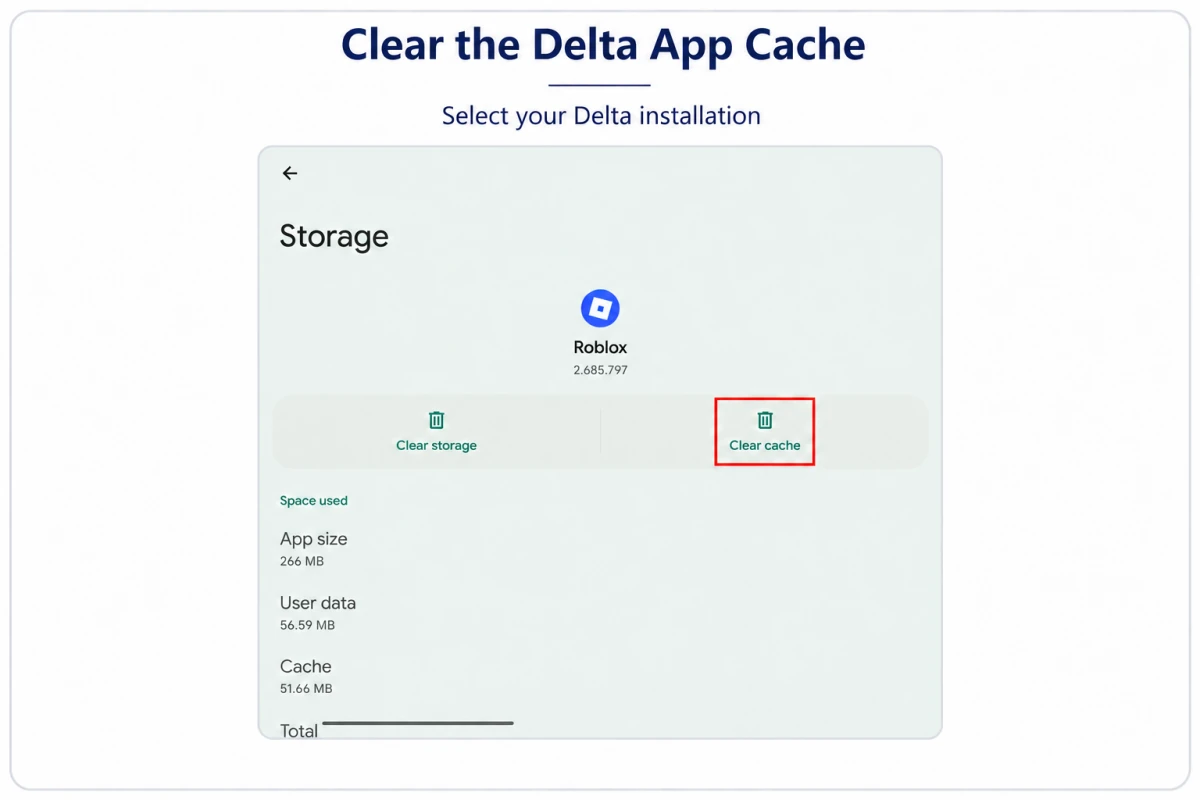
Clear the Delta app cache Check for a Compatible Delta Executor Update
If Delta still shows the alert, check the Delta Executor download on our website for a newer compatible build. If no compatible build is offered, you may need to wait. Avoid downloading unverified APK files or disabling Android security controls.
Reinstall Delta Executor if the problem continues
If the installation seems damaged, back up your saved settings, uninstall Delta through your phone’s app settings and reinstall the compatible Delta Executor APK from our website.
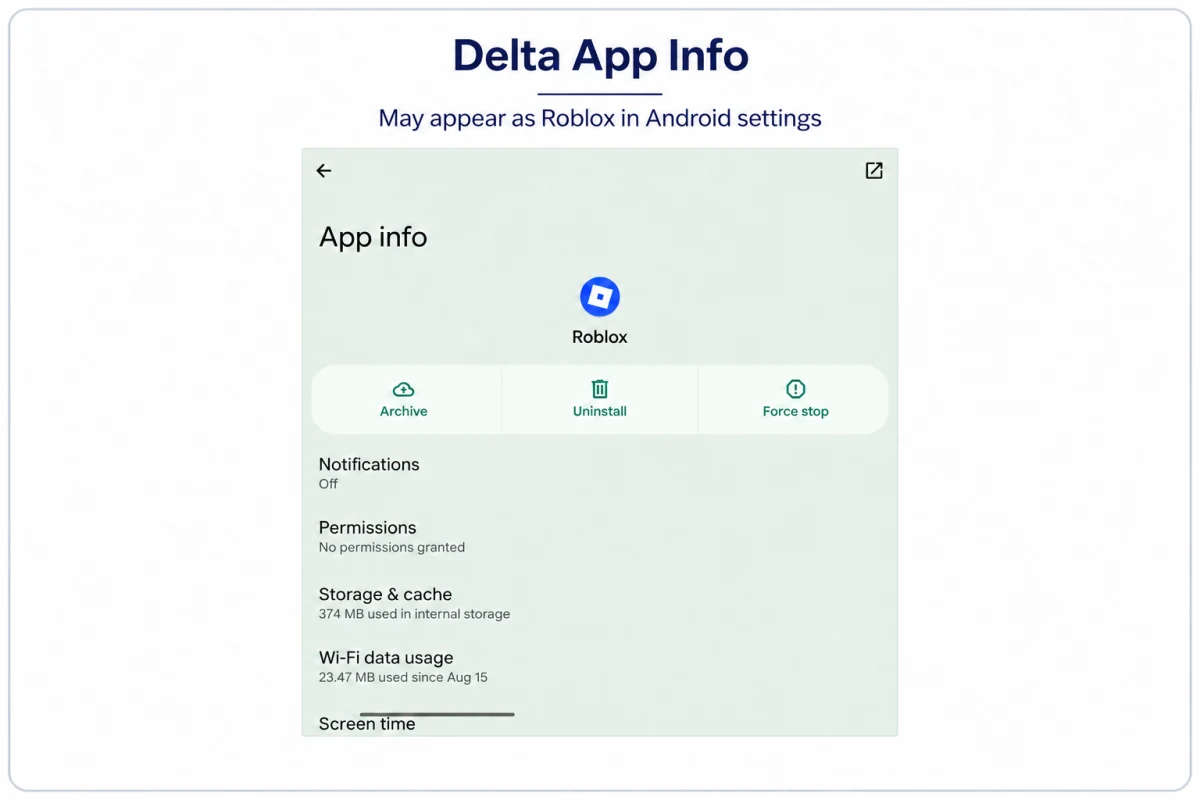
Delta app info — may be listed as Roblox
Frequently Asked Questions
Why does the delta executor say Roblox requires an upgrade when the app is updated?
A mismatch of the version of Delta Executor and the current Roblox client may trigger the alert. Before reinstalling the same version, check our website for a newer compatible Delta Executor build.
Can you fix the Roblox upgrade error by selecting not now?
You can skip the alert if the option appears, but the choice does not resolve the underlying compatibility issue. If delta remains unable to start, proceed with version verification and basic troubleshooting.
Is Roblox error code 280 the same as the delta upgrade error?
Both may relate to version-related problems, still the warnings are not always equivalent in every instance. Confirm the specific error code and whether your Delta build supports the current Roblox version.
Can clearing the Delta Executor cache resolve the error?
Clearing the cache can resolve short-term problems with the app, but it cannot make an executor that is incompatible work with a newer client. If it continues, check the version compatibility.
What if no compatible delta upgrade is offered?
You might have to wait until a supported release can be obtained. Until a compatible update is available, avoid reinstalling the same APK or downloading unofficial patches.
Final Thoughts
The Delta Executor Roblox Upgrade error does not always suggest that Roblox requires a new update. An outdated Roblox client bundled with Delta may trigger the same error message even when Google Play indicates that Roblox is current.
First, check our website for a compatible Delta Executor update, reboot your phone and clear the app cache. If you are still encountering the error on Delta, check version compatibility instead of reinstalling the same app multiple times. Good troubleshooting can help you find the probable cause without unwanted downloads or risky changes to your device.